Apple Photos – How to view all unnamed faces – Solved

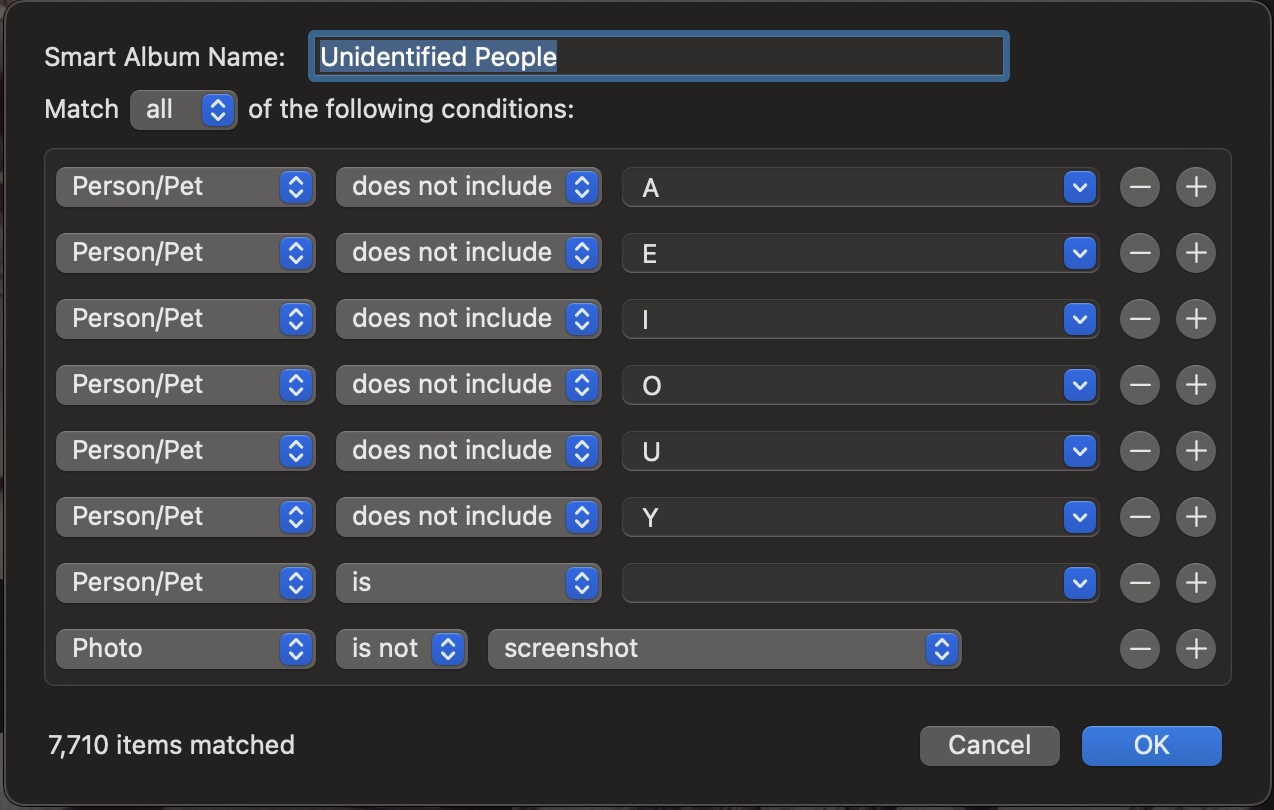
I finally discovered the secret for creating a smart album that only shows photos that do NOT have people or pets identified in Apple Photos on MacOS.12

  1. Create a smart album with the criteria “person/pet” -> “does not contain” -> =”A” (It will suggest a name from the database to place here but just change it manually.)
  2. Repeat creating rules using the same criteria but with the all the other vowels.
  3. Next create a rule for “person/pet” -> “is” -> “”. That’s correct, just remove all characters from the textfield. This should filter out all of the photos without a face.
  4. Lastly create a rule for “photo” -> “is not” -> “screenshots”.

Here is the smart album:

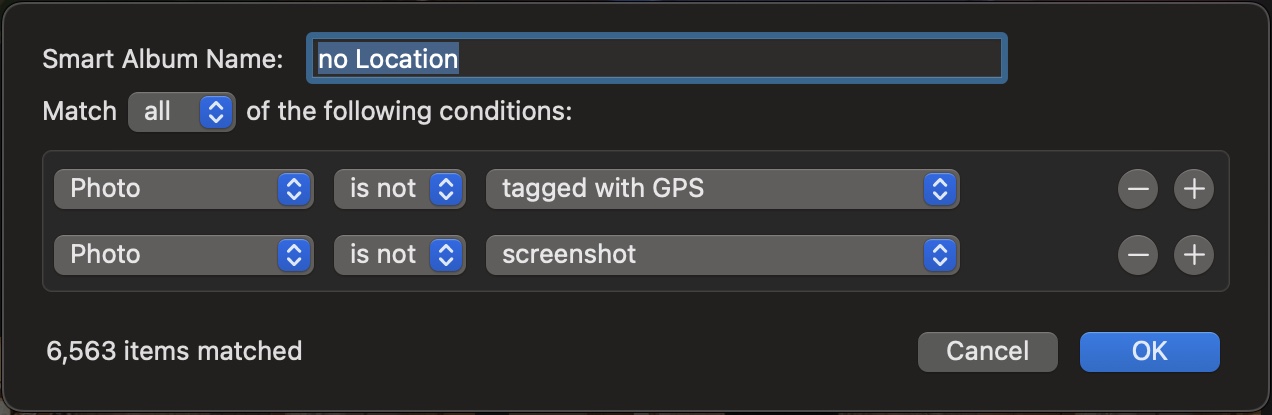
I also created one for unmarked GPS locations.

Screenshot of the smart album for showing images that have no location in Apple Photos.

  1. My source for this information comes via Apple Discussion Forums[]
  2. It doesn’t work if at least one of the other people in the photo are named but it’s a pretty good start.[]

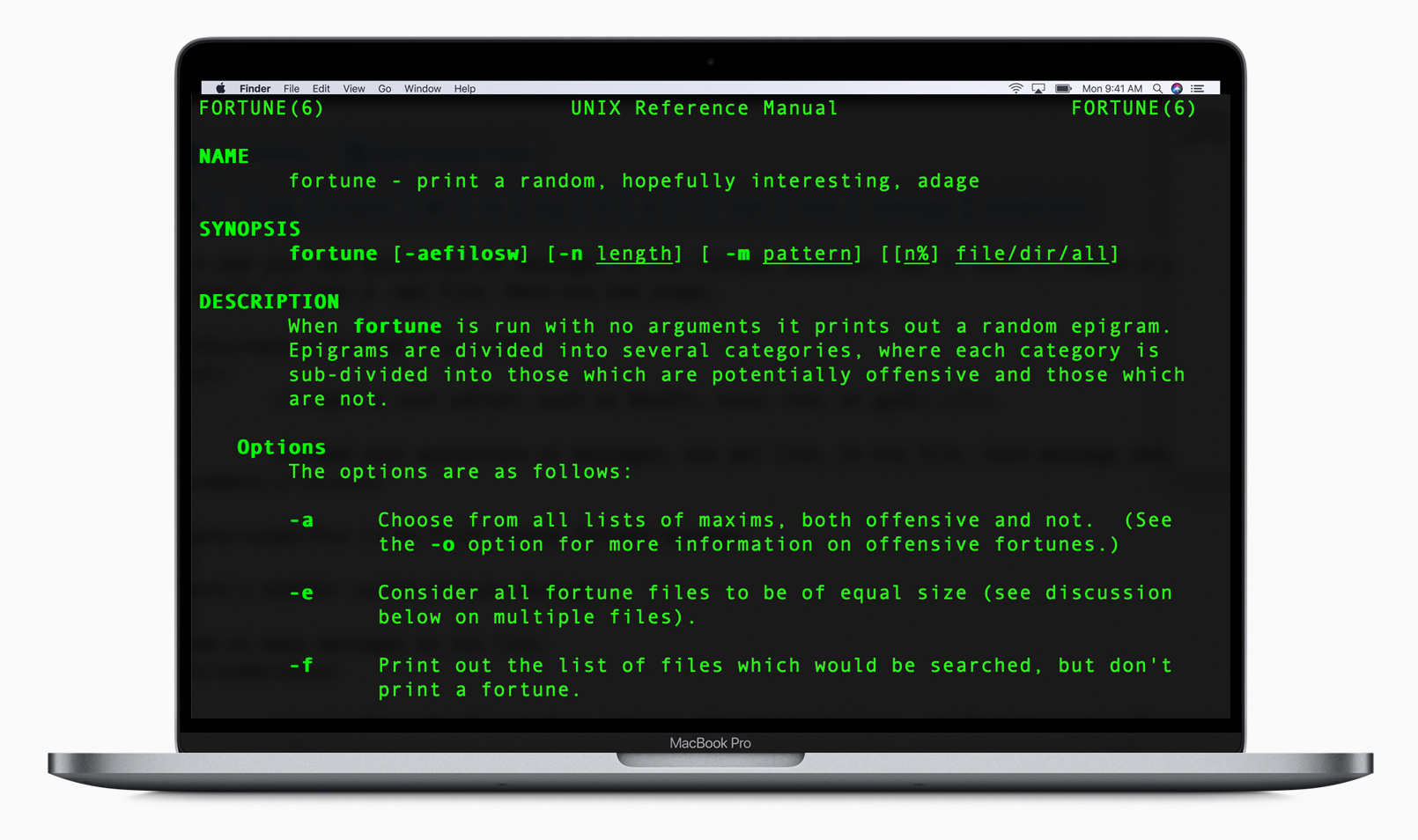
Fortune

MacBook running the manual for Fortune

I’ve been learning Terminal commands from a new book that I’ve been reading, “Tweak Your Mac Terminal“.

Combing through the first chapter, I discovered a simple command-line utility called “Fortune”. When it’s installed and run at the command-line, Fortune displays random quotations or proverbs. It is often used to provide a humorous or thought-provoking message to users when they log in or open a terminal session. I noticed within the fortune manual (man fortune) that there were some offensive fortunes that had been relegated to only operating when one entered the -o flag (fortune -o) but then discovered that the offensive quotations had actually been removed altogether from the home-brew repository because, well, it includes explicitly racist, homophobic, ethnically insensitive and other offensive content that directly conflicts with the Homebrew’s code of conduct.

Curiosity killed the cat and I found them online. Needless to say, they are at least pretty crass if not outright offensive. But finding them led me down the path to discovering how to create my own quotations to add to the library of possible fortunes.

To add your own quotations or messages to the fortune database, you’ll need to create a custom fortune file and then compile it into a .dat file. Here are the steps:

Create a Fortune File:
  • Open a text editor, such as bbedit, nano, vim, or gedit.
  • Add your quotations or messages, one per line, to the file. Each message should end with a % character. For example:
This is my first custom fortune message.
%
Here's another custom fortune message.
%
Add as many messages as you like.
%
  • Save the file with a .txt or .dat extension (e.g., my_fortunes.txt).
Convert the Fortune File:
  • Use the strfile command to convert your text file into a .dat file. The .dat file is used by the fortune program to provide random messages efficiently. Run the following command:
strfile my_fortunes.txt my_fortunes.dat
  • Replace my_fortunes.txt with the actual name of your text file and my_fortunes.dat with the desired name for your .dat file.
  • Install or Copy to Fortune Directory:
  • If you want to make your custom fortunes available system-wide, you can copy the .dat file to the system’s fortune directory. On most Unix-like systems, this directory is typically /usr/share/games/fortunes/ or /usr/local/share/games/fortunes/. You may need to use sudo to copy the file:
sudo cp my_fortunes.dat /usr/share/games/fortunes/

Ninety Percent of People Don’t Know How to Use CTRL-F

Last year I read, “Crazy: 90 Percent of People Don’t Know How to Use CTRL+F“, an article from theatlantic.com, and I decided then to make sure that as a school teacher I was going to try and reverse that statistic. Thinking about it today, I realize I have never posted here to help get the word out, so I’m doing it now.

CTRL-F will help you find text on a web page in most modern browsers. Press and hold Ctrl and then press F, follow that by typing in the words or words you want to find. Mac users try Command + F.

There — I just saved hours, if not days of your life.

CTRL-F Why you no work on paper?

Oh, and as a bonus tip, if you want the same search functionality in your personal (paper) book library, give the My Library feature of Google Books a try — it might just blow your mind.

YouTube Video Direct Download Script

If you use Firefox, Safari, Google Chrome or Opera, you can download YouTube videos directly by pasting the following code into your address bar while watching the video.

javascript:window.location.href = 'http://youtube.com/get_video?video_id=' + swfArgs['video_id'] + "&l=" + swfArgs['l'] + "&sk=" + swfArgs['sk'] + '&t=' + swfArgs['t'];

When the download is finished, be sure to rename it with a .flv extension.

Alternatively, use this code:

javascript:window.location.href = 'http://youtube.com/get_video?video_id=' + swfArgs['video_id'] + "&fmt=18" + "&l=" + swfArgs['l'] + "&sk=" + swfArgs['sk'] + '&t=' + swfArgs['t'];

to download in the higher quality mp4 format.

(via)

Custom RSS Via Yahoo! Pipes

Yahoo! Pipes LogoThis afternoon I’ve been playing around with Yahoo Pipes, a service that converts web pages without RSS feeds into useful XML files oozing with possibility.

For my first project, I wanted to get my local movie listings into Google Reader. Here is the finished product, an RSS feed for The Movie Mill, a theatre that’s only a few blocks from my house.

I’ve been irritated that a service that would benefit the theatre and its customers has not been available for the past few years. (I hope this feed makes it’s way around so that more people will know what movies are playing and when— it builds on the idea that information wants to be free, even if going to the movies costs money).

Other feeds I’ve thrown together today include an RSS feed for the Lethbridge Herald Front Page News and another RSS feed for the Medicine Hat Front Page News too! It’s kind of wonderful that technology allows one to liberate data and reformat it in a way that makes sense.

Details on how I put together the pipes after the jump:
Continue reading “Custom RSS Via Yahoo! Pipes”

The Firefox Quick Search

Here’s a useful tip for Firefox users. Typing in dict followed by a word you want to lookup in the address bar will send you to the definition page for that word.

For people that love keyboard shortcuts:

Alt-d (focuses cursor on the address bar)

type: “dict + word

Takes you to dictionary.com with the definition you wanted.

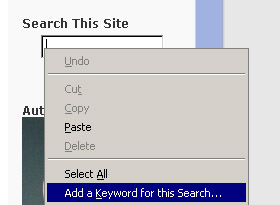
Wouldn’t it be great if you could setup custom quick searches on other sites? Well you can; here’s how! Find a search box on the site you’d like to add a quick search for, (currently it’s on the top right side of the main page sidebar at this site), right click on the search bar, and click on “Add a Keyword for this Search” you should see something like this:

Setting up a keyword search in firefox

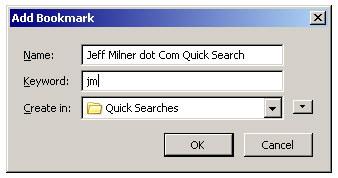
Then, enter a title for the search and a keyword you’ll use to execute it, like this:

Saving the keyword search in Firefox

Once you click the ok button (it might say “Add” in other OS versions), your quick search is setup and ready to search jeffmilner.com. Now, as an example type jm backmasking into your firefox address bar and Firefox will bring you to the search results for backmasking related posts on this site.

(via).