I finally discovered the secret for creating a smart album that only shows photos that do NOT have people or pets identified in Apple Photos on MacOS.12
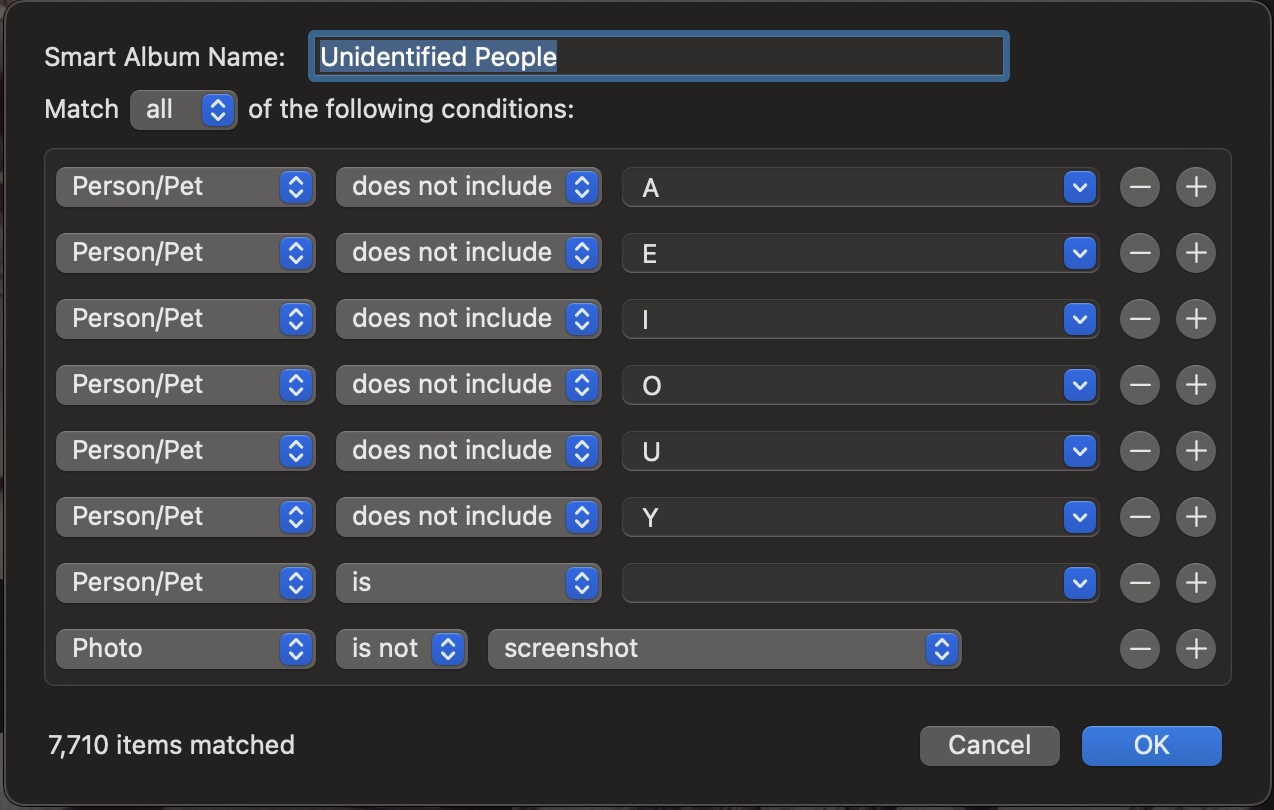
- Create a smart album with the criteria “person/pet” -> “does not contain” -> =”A” (It will suggest a name from the database to place here but just change it manually.)
- Repeat creating rules using the same criteria but with the all the other vowels.
- Next create a rule for “person/pet” -> “is” -> “<blank>”. By blank I mean remove all characters from the textfield. This should filter out all of the photos without a face.
- Lastly create a rule for “photo” -> “is not” -> “screenshots”.
Here is the smart album:
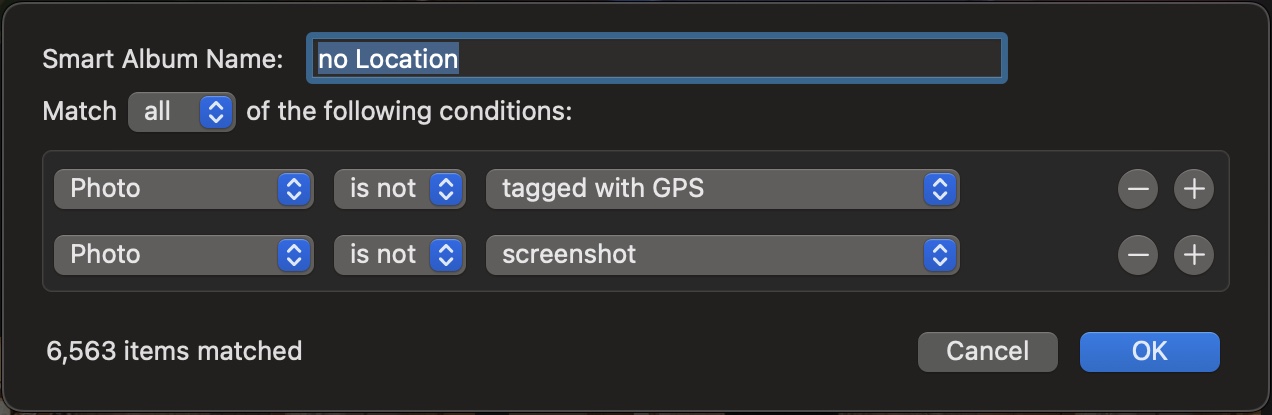
I also created one for unmarked GPS locations.
- My source for this information comes via Apple Discussion Forums[↩]
- It doesn’t work if at least one of the other people in the photo are named but it’s a pretty good start.[↩]
Useful, thx, but if there are two or more unnamed faces as soon as I name one face, the picture is removed from the smart album
Just worked out that if I copy the contents of the smart album into a dumb album I can rename without losing the pic
Thanks again for the tips above
That’s a great idea. Thanks for sharing.